Dawn of War 4Field guide
Field manual / Customisation

Army Painter guide

Start with the colours your whole army wears. Switch to Advanced when you want one model’s helmet, cloth or weapon to stand apart.

01 / Demo access

Download the free Painter Demo

On the Dawn of War IV Steam page, find Download Warhammer 40,000: Dawn of War IV – Painter Demo and choose Download, not a paid edition. The demo includes units from the Space Marines, Orks, Necrons and Adeptus Mechanicus.

02 / At the workbench

One Bladeguard Veteran, two editing modes

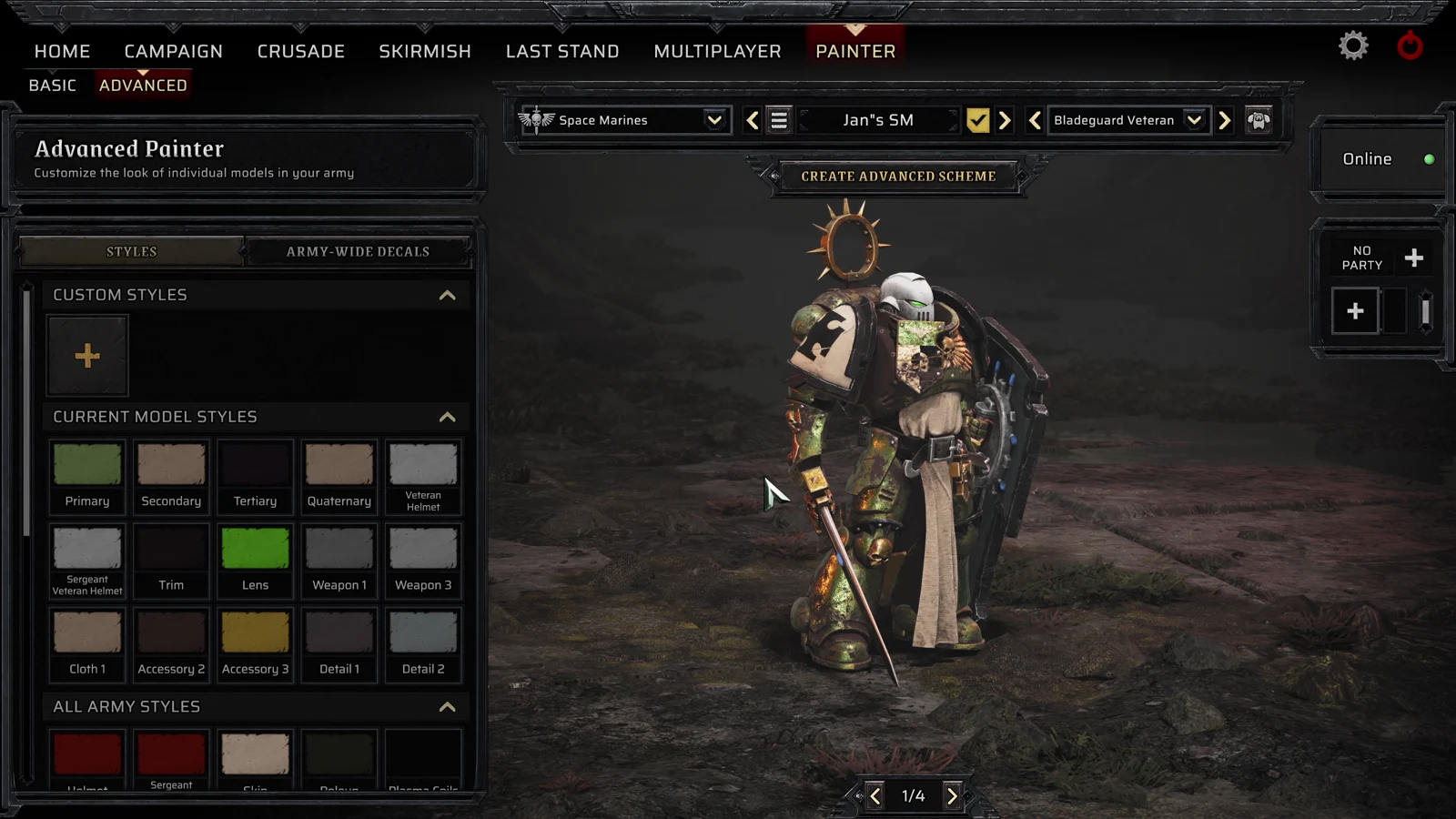
Compare the left panel in these two stills from the official Painter walkthrough. The unit stays the same; the scheme changes during the demonstration. Switching tabs is not what turns the armour green.

Basic · Set the army scheme
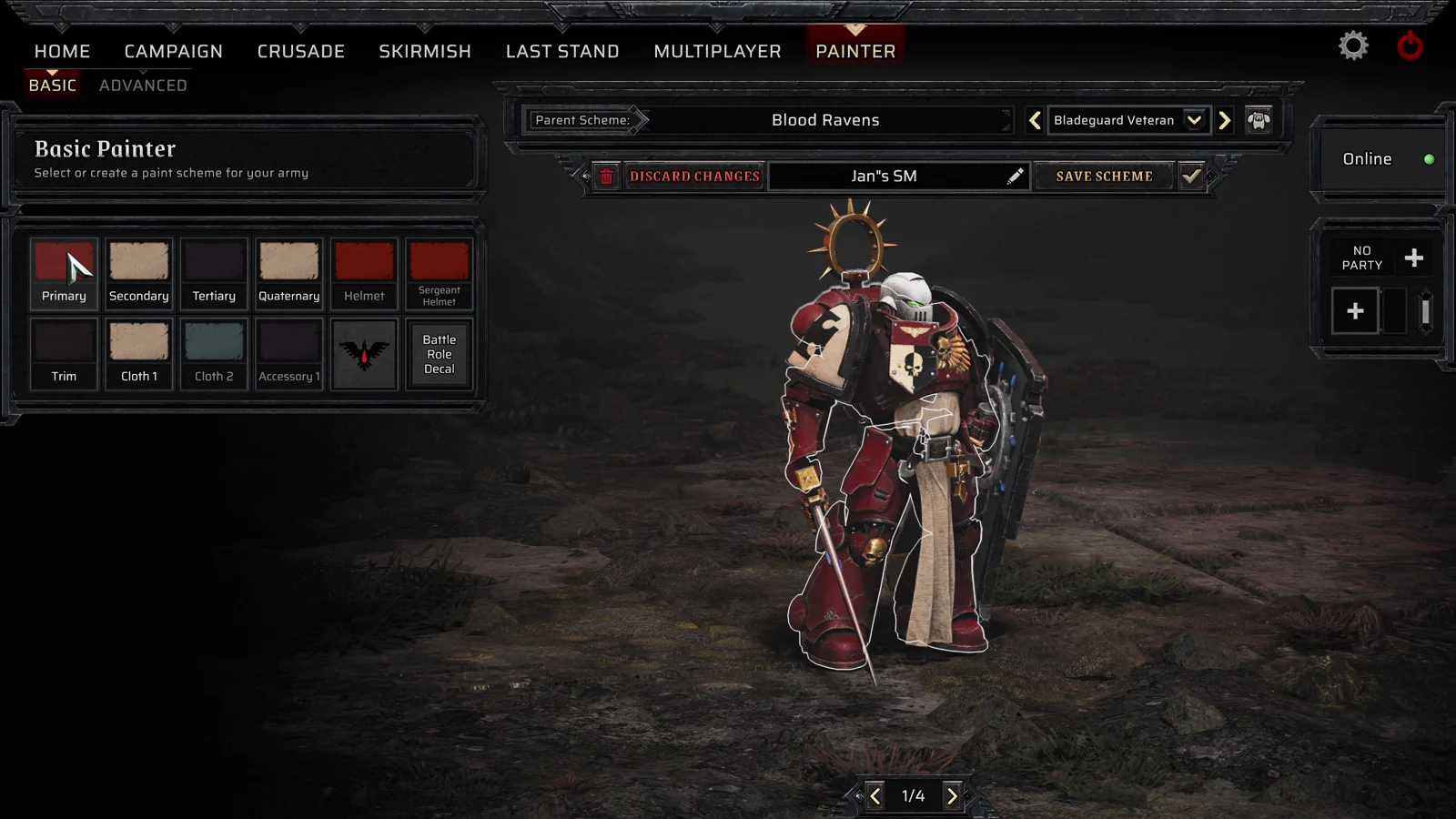
Basic Painter: a red-and-cream Bladeguard Veteran beside the army colour slots, with the pointer over Primary.
00:58 · Blood Ravens is the parent scheme. The panel groups colours by role: Primary, Secondary, Trim and Cloth, for example. Start here for a consistent army palette.

Advanced · Work on the model

Advanced Painter: the Bladeguard Veteran in mottled green armour beside the Current Model Styles panel.
02:30 · Current Model Styles lists Lens, Weapon 1 and Cloth 1 among its swatches. Use Advanced for individual armour and body parts; this view shows the styles list, not an individual part being painted.
03 / Keep a design

Save your scheme for the full game

Use Save Scheme to keep the design in the demo. Deep Silver says saved designs can be imported into the full game at launch. Saving is the first step; don’t count on an automatic transfer.

04 / Exchange a design

Share a scheme with another player

Choose Create Scheme Code and send the resulting code to your friend. They choose Redeem Scheme Code and paste it to import your design. This code shares a paint scheme; it isn’t a Steam key.

Image credits and sources →